 MyDetails
Try app-free contact sharing
Scan. Open. Save.
See how a MyDetails card opens in your browser and saves as a contact. No account or app needed.

mydetails.me/demo
Open your camera, scan the code, then tap Save Contact.
Event organizer kit
Tell us the event. We prepare the labelled link, two A4 signs, invitation copy, and a short placement note. Your team reviews the files and uses one item.
No recipient account or app is required.
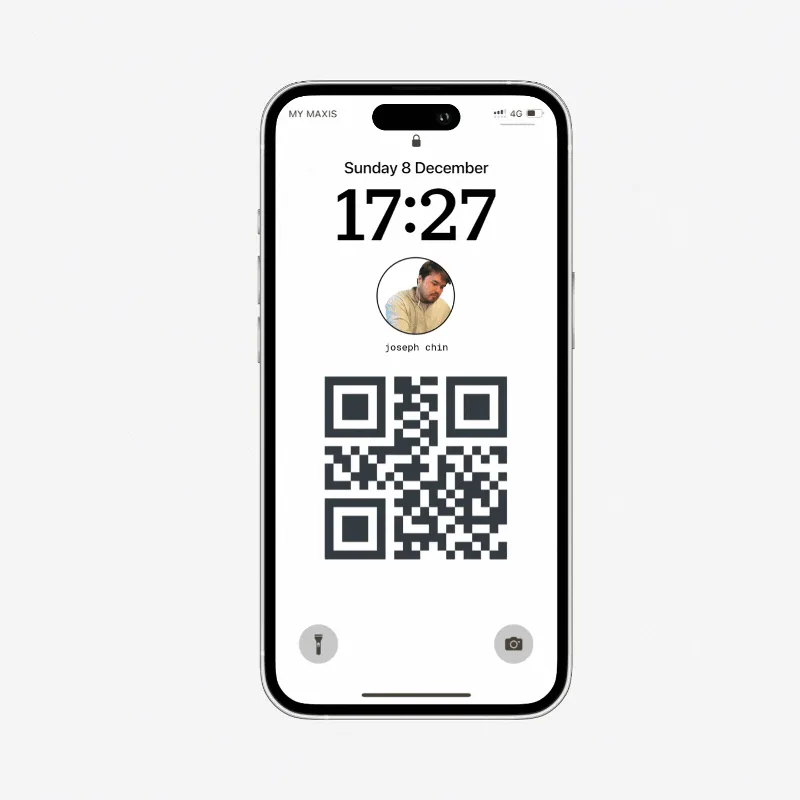
One instruction for attendees
Scan. Open. Save.
A contained first test
Start with one event, one location, and one item. You can review every file before deciding what to use.
Recommended first placement
Place only the demo sign at registration or on one networking table. Leave the attendee-creation sign out of the first test.
Before doors open
Use the kit as a check-in prompt, a screen slide, or a tabletop sign. Keep the explanation short enough to use in a live room.
Send attendees the card-creation link before the event, or show it while they check in.
Print the sign below and put it where people can test the scan-and-save flow.
Ask attendees to open their card QR when they meet someone they want to remember.
Make it event-ready
It will appear on the attendee invitation and creation sign. Leave it blank to keep the generic versions.
Attendee instructions
“When you want to exchange details, open your MyDetails QR code. The other person scans it with their phone camera, opens your card, and saves your contact.”
Share the attendee networking guidePoint the phone camera at the attendee's MyDetails QR code.
Tap the prompt to open the public card in the browser.
Choose Save Contact to add the shared details to the phone.
Two signs, two jobs
Keep the demo at a welcome desk. Use the creation sign where attendees are ready to make their own card.
Printable demonstration
Print the sign, place it near check-in, and scan it once on-site to confirm the venue connection can open the live demo.
MyDetailsTry app-free contact sharing
See how a MyDetails card opens in your browser and saves as a contact. No account or app needed.
mydetails.me/demo
Open your camera, scan the code, then tap Save Contact.
The QR code and printed URL both open the live MyDetails demo.
Printable creation prompt
Place this sign at check-in, a networking table, or beside the event screen. Its QR opens card-first setup directly.
MyDetailsYour next contact is one scan away
Add your name and details now. Share them by QR code when the next conversation starts.
Scan to create your card
Customize first. Create your account when you are ready to save.
The QR code opens card-first setup with this sign recorded as the entry point.