Business card information guide
What to put on a business card: 7 details people can use.
Give a new contact enough information to remember you and take one clear next step. Start with identity, context, and the contact methods you actually want people to use.
Quick answer
What information should be on a business card?
Put your name, role, company, and one preferred contact method on your business card. Add a phone number, website, LinkedIn profile, or QR code only when it gives the recipient a useful next step. Leave out private, outdated, or duplicated details.
The essential business card details
Make every line earn its place.
A business card is a handoff, not a complete biography. These seven fields cover identity, context, and follow-up. You do not need every field for every audience.
- 01
Your name
Use the name you introduce yourself with. Add relevant professional letters only when they help someone identify your work.
- 02
Job title or role
Describe what you do in words your new contact will recognize. A clear role is more useful than an internal title.
- 03
Company or organization
Include the organization you represent in this conversation. Independent professionals can use a trading name or a short specialty instead.
- 04
Work email
Choose one address you check and want people to use for follow-up. Avoid listing several inboxes without explaining the difference.
- 05
Phone or WhatsApp
Add a number only when calls or messages are a welcome next step. Label WhatsApp clearly so people know how to reach you.
- 06
Website
Link to the most useful destination, such as your company site, portfolio, booking page, or product page.
- 07
LinkedIn profile
A personal profile helps a new contact place the conversation later. Use the direct profile URL, not a search result or company page.
Optional information
Include it only when it helps the next conversation.
The right extras depend on why you are exchanging details. Ask whether each field helps this person recognize you, evaluate your work, or contact you.
Professional headline
Useful when your job title is vague. Keep it to one specific line about the work you do.
Profile photo or logo
A photo can help event contacts remember the conversation. A logo helps when the company matters more than the individual.
Business address
Add it when people visit, send items, or need to know your service area. Skip a private home address.
Accreditations
Use short, recognized credentials when they affect trust or eligibility. Do not turn the card into a qualification list.
Include it for audiences that commonly use it for business, and only if you are comfortable receiving messages there.
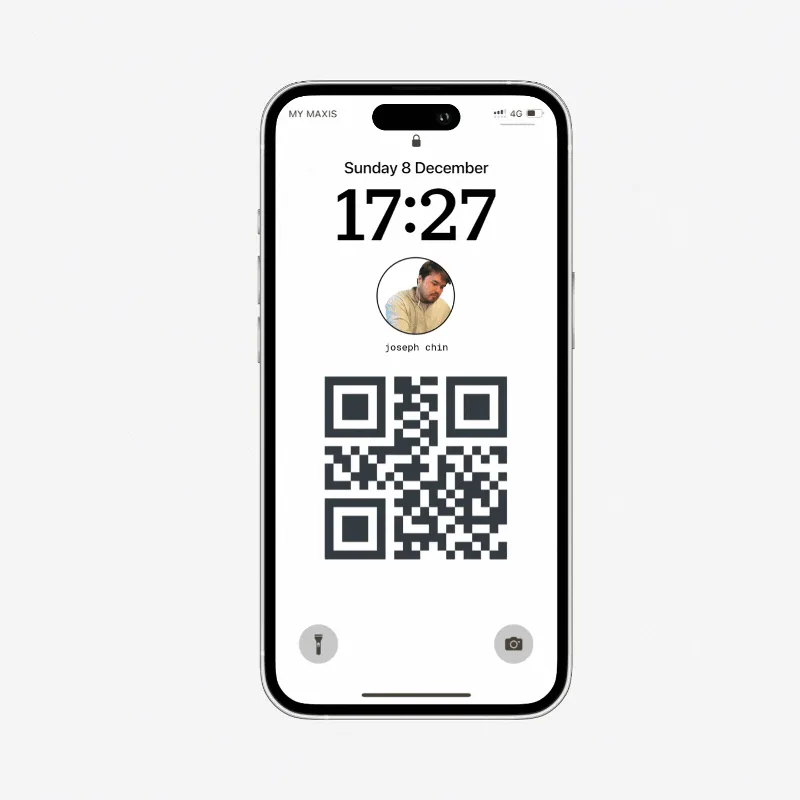
QR code
Point it to a mobile-friendly contact page. Test the exact destination before you print or share it.
What not to put on a business card
Remove anything that creates doubt or noise.
More information is not always more helpful. A clean card makes your preferred follow-up path obvious.
- Private details you do not want forwarded
- Old websites or inactive social profiles
- Several phone numbers with no labels
- Long lists of services, slogans, or awards
- A QR code you have not tested
- Tiny text added just to fill the space
- A generic inbox nobody monitors
- Claims you cannot support in conversation
Physical and digital cards
The information stays familiar. The handoff changes.
Printed business card
- Core details are visible immediately.
- A QR code can connect the card to a digital profile.
- Printed information stays fixed until you reprint it.
Digital business card
- The public link can show updated details after you edit the card.
- Recipients can save the shared details to their contacts.
- A downloaded contact does not update automatically; the live link does.
vCard is a standard format for exchanging contact information, defined by the IETF in RFC 6350. Apple and Google both document importing vCard or VCF files into their contact systems.
Before your next event
Run a 60-second business card check.
Review the card from the recipient's point of view. They should know who you are, why they met you, and how to follow up without asking another question.
Read the event networking guide- 1Open every link and confirm it reaches the intended page.
- 2Check the name, role, company, email, and phone for errors.
- 3Remove contact methods you do not want this audience to use.
- 4Scan the QR code with a second phone before the event.
- 5Save the contact once and inspect what reaches the address book.
Business card information FAQ
Direct answers to common questions.
What information should a business card contain?
A useful business card contains your name, role, company, and one clear way to contact you. Add a phone number, website, or LinkedIn profile only when each one gives the recipient a useful next step.
What is the most important information on a business card?
Your name and preferred contact method are the minimum. Your role and company add the context that helps someone remember why they met you.
What should you not put on a business card?
Leave out private contact details, outdated links, long service lists, and social profiles you do not use professionally. Too many competing contact options make the next step less clear.
Should I put my home address on my business card?
Usually no. Add a public business address only when visitors, deliveries, or local service are relevant. A city or service area is often enough for an independent professional.
Should a business card include a QR code?
A QR code is useful when it opens a mobile-friendly page with your contact details and a clear save action. Keep your name and core details visible as well, so the card still makes sense without scanning.
Do saved contacts update when I change a digital business card?
The public card link can show your latest details after you edit it. A contact already downloaded to someone else's phone does not automatically update, so keep the live link available for future reference.