Digital business card guide
How to make a digital business card people can actually use.
Build one mobile page with your useful contact details, a public link, a QR code, and a clear way to save the contact. Then test the handoff on another phone.
Quick answer
Make the card around one fast recipient handoff.
Choose the details you want to share, create a mobile-friendly public card, and give people a link or QR code to open it. Add a contact-save action, then scan and save the card yourself before using it in a real conversation.
Choose the format
A live page does more than a picture of a card.
A static image is easy to send, but its phone number and email are not automatically tappable. A live card can combine a recognizable layout with contact actions and a vCard download.
Static card image
Useful as a visual attachment, but recipients may need to copy or type the details themselves.
Contact file
Packages contact fields into a vCard that an address-book app can review and save.
Live card page
Opens from a link or QR code, keeps contact actions together, and can show later edits at the same URL.
Six practical steps
Build from the conversation backward.
The card succeeds when another person can recognize you, choose a next step, and save the right details without slowing down the conversation.
Step 1
Choose the card's job
Decide where people will use it: at events, after an introduction, or from your email signature. That choice determines what belongs on the card.
Step 2
Gather your core details
Start with your name, role, company, and one contact method. Add a website or LinkedIn profile only when it gives the recipient a useful next step.
Step 3
Add a recognizable visual
Use a current profile photo or company logo. Keep the card easy to identify at a glance instead of filling it with decorative elements.
Step 4
Build for a phone screen
Use readable text, clear tap targets, and a short first view. The recipient should understand who you are before they need to scroll.
Step 5
Create a link and QR code
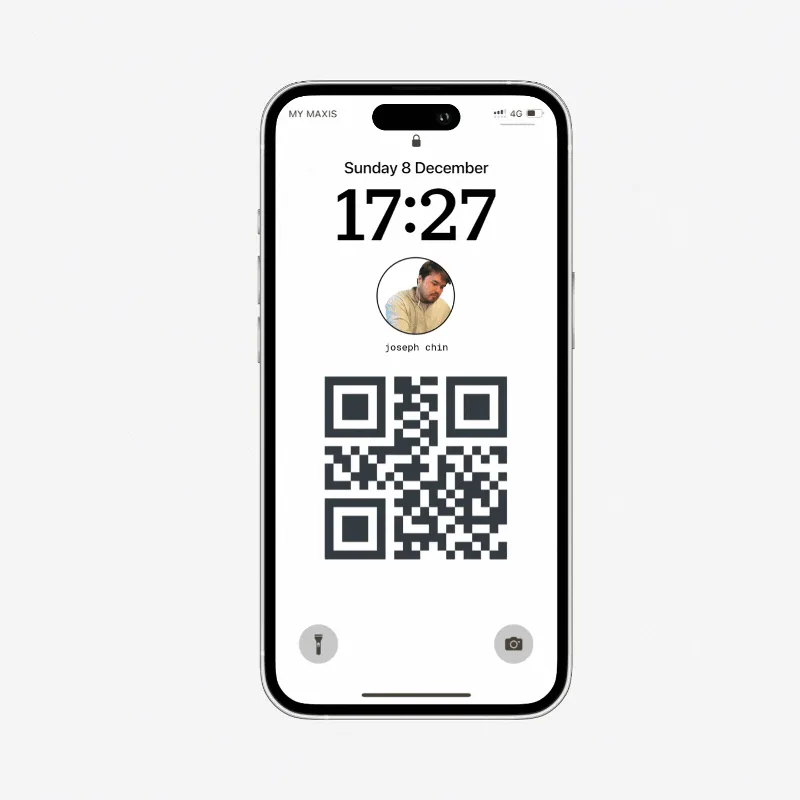
A public link works in messages and email. A QR code puts that same card one scan away during an in-person conversation.
Step 6
Test the recipient's path
Open the link on another phone, scan the QR code, tap each contact action, and save the contact. Fix anything unclear before you share it.
Make one with MyDetails
Customize first. Create the account when the card feels right.
MyDetails starts with the card rather than an empty account. Name is the only required field. You can preview the card, continue with Google, then share its public link or QR code.
- 1
Add your name and useful work details
- 2
Preview the public card as you edit
- 3
Continue with Google to publish it
- 4
Share the link, QR code, or contact save
Test before you share
Check the path from the recipient's side.
Your own editor view is not the real experience. Use another phone or a private browser window and verify every action a new contact will depend on.
The QR code opens the intended public card.
Your name, role, and company are correct at a glance.
Email, phone, WhatsApp, website, and LinkedIn actions open correctly.
The downloaded contact contains the details you expected.
An edit appears at the same public link after you save it.
Digital business card FAQ
Direct answers before you build.
How do I make a digital business card?
Choose a mobile-friendly card tool, add your name, role, company, and preferred contact details, then publish the card. Test its public link, QR code, and contact-save action on another phone before sharing it.
What should I put on a digital business card?
Include your name, role, company, and one clear way to contact you. A profile photo, website, phone number, WhatsApp number, or LinkedIn profile can help when each one supports a useful next step.
Can I use my phone as a digital business card?
Yes. You can show a QR code on your phone for someone nearby to scan, or share the public card link through the phone's share menu, messaging apps, or email.
Do recipients need an app to view a digital business card?
That depends on the service. A browser-based card such as MyDetails opens from a public link without requiring the recipient to install an app or create an account.
Does a digital business card update automatically?
A live card link can show your latest details after you edit the card. A contact already saved to someone else's address book remains a snapshot and does not automatically update.
Should a digital business card use a link or a contact QR code?
A link QR code lets the recipient review a live page before saving your details and keeps the same destination when you update the card. A contact QR code stores a fixed set of contact fields directly in the code.